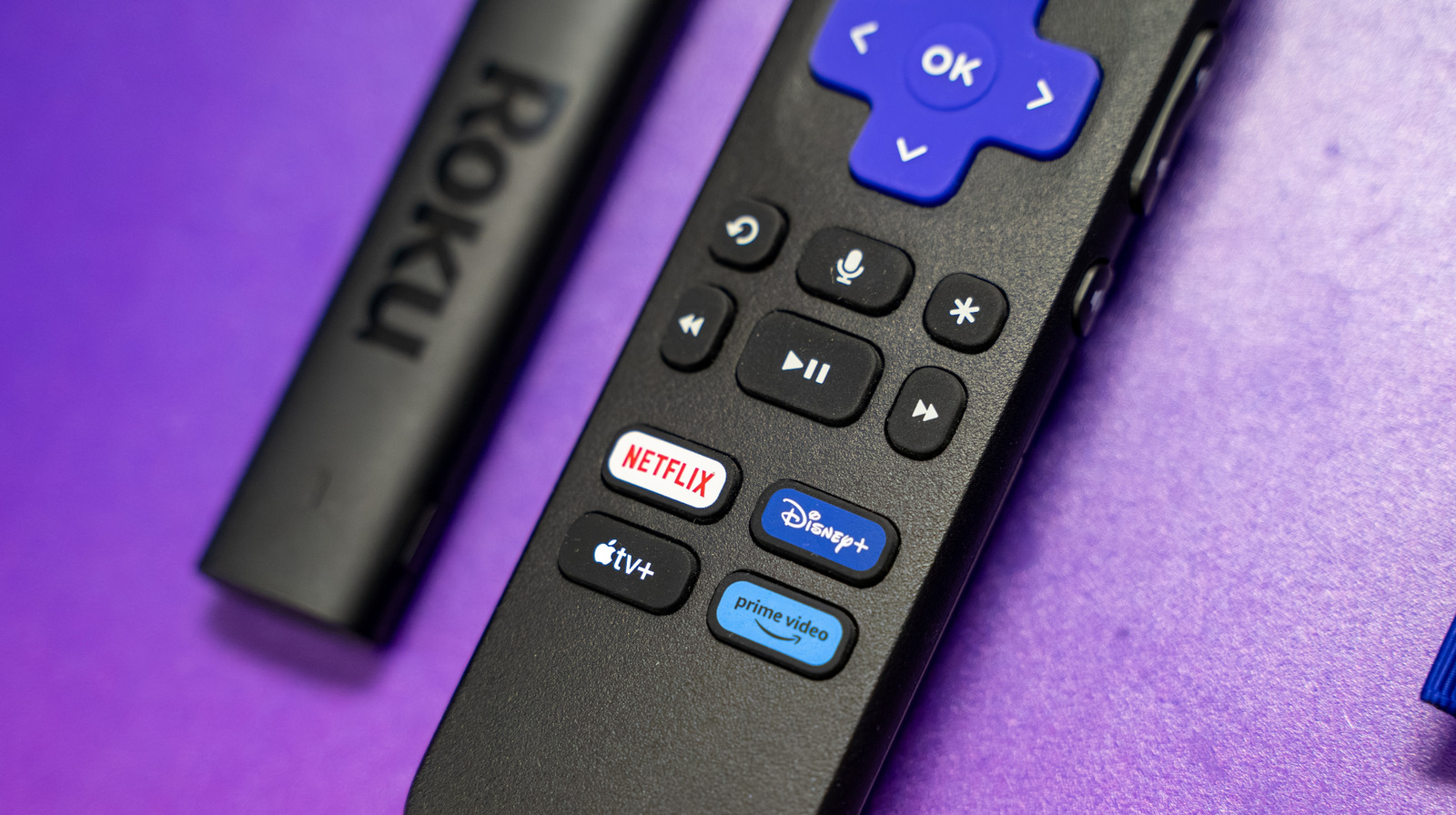
Roku streaming hardware provides a user-friendly interface for apps, live TV channels, screen mirroring, and more, but the Roku TV OS places ads on the home screen and screensaver. Roku can monitor search history and share data with other companies. Users can stop data sharing and limit sensitive information in Settings > Privacy > Privacy Choices by selecting Do not share/sell my information and Limit use of sensitive information. Users can opt out of specific ad categories via Settings > Privacy > Advertising > Sensitive ad content, and those preferences apply to all devices on the Roku account. Users can hide individual ads via the Star button, but hiding is limited to several times per day with a 24-hour reset. Ad preferences are limited to displayed ads and do not necessarily affect video ads or ads in partner apps.
"Once powered and connected to Wi-Fi, its hardware provides a user-friendly interface for accessing apps, live TV channels, screen mirroring, and more. One of the only drawbacks of Roku TV OS is the ads scattered about the home screen and screensaver. We ranked every Roku streaming device from worst to best, but no matter how much money you drop on one of these streaming peripherals"
"You may also want to check the box that says, "Limit use of sensitive information." To avoid seeing certain types of ad content (e.g., alcohol, politics, violence), go to Settings > Privacy > Advertising > Sensitive ad content, then choose the categories you would like to opt out of. Once you press OK, these preferences will be saved and applied to all devices tied to your Roku account."
"Roku also allows you to hide individual ads that you may come across, replacing it with an alternative promotion. To do so, just highlight the ad and press the Star button on your Roku remote. Select Hide this ad and OK. You can only do this several times per day, though, at which point you'll be locked out of hiding ads until your 24-hour limit is reset."
Read at BGR
Unable to calculate read time
Collection
[
|
...
]