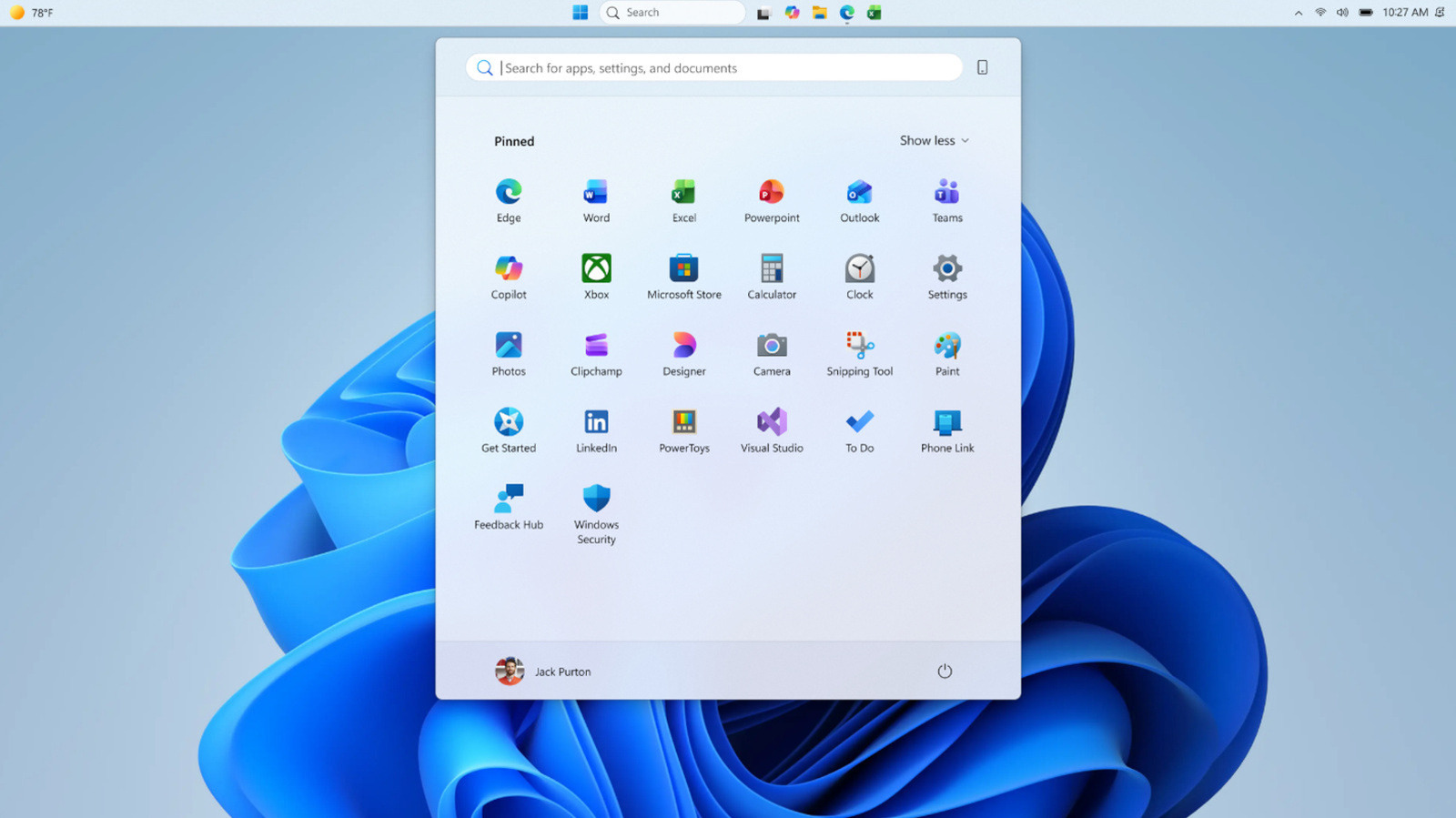
Windows 11 testing for Windows Insiders adds Start menu customization and improved taskbar positioning. The Start menu can be switched between Small and Large sizes, with the chosen size staying consistent across displays. Section-level toggles allow showing or hiding parts of the Start menu, including Pinned, Recommended, and All, and a separate control can disable file recommendations in the Start menu without affecting other areas. Privacy options include hiding the name and profile picture in the Start menu. Taskbar placement can be moved to any screen edge, and icon alignment can be selected based on the chosen edge, including top-aligned and centered for left or right placement and left-aligned or centered for top or bottom placement.
"If you hate how big and bloated the Windows 11 Start menu has gotten, this test will give you the option between Small and Large versions of the menu. Simply choose the size you want from the Start menu settings, and your pick will stay consistent across displays. Windows Latest previously found that Windows 11's Start menu became almost twice as big after an update that came out in November last year. Microsoft told the publication that it was aware of it and was looking into the publication's feedback."
"In addition, the Insiders release will give you access to section-level toggles - Pinned, Recommended, and All - so you can show or hide parts of the menu to simplify your experience. You can see a Start menu with just your pinned apps, for instance, if you switch off Recommended and All. These toggles will be rolling out over the coming weeks. You'll also get access to a separate control for file recommendations, which will let you disable them in Start menu alone and not in other places, as well as the option to hide your name and profile picture in Start to protect your privacy if you're sharing your screen or streaming."
"Microsoft will also give you the power to position your taskbar on any edge of the screen, whether it's top, bottom, left or right. You can even choose the icon alignment, with top-aligned and centered being the choices when the taskbar is on the left or right edge. If you put the taskbar on the top or bottom edge, you can choose between left-aligned and centered icons."
Read at Engadget
Unable to calculate read time
Collection
[
|
...
]